Product updates

What's new at FillFaster

Everything we launch, improve, and connect - in one place.

New

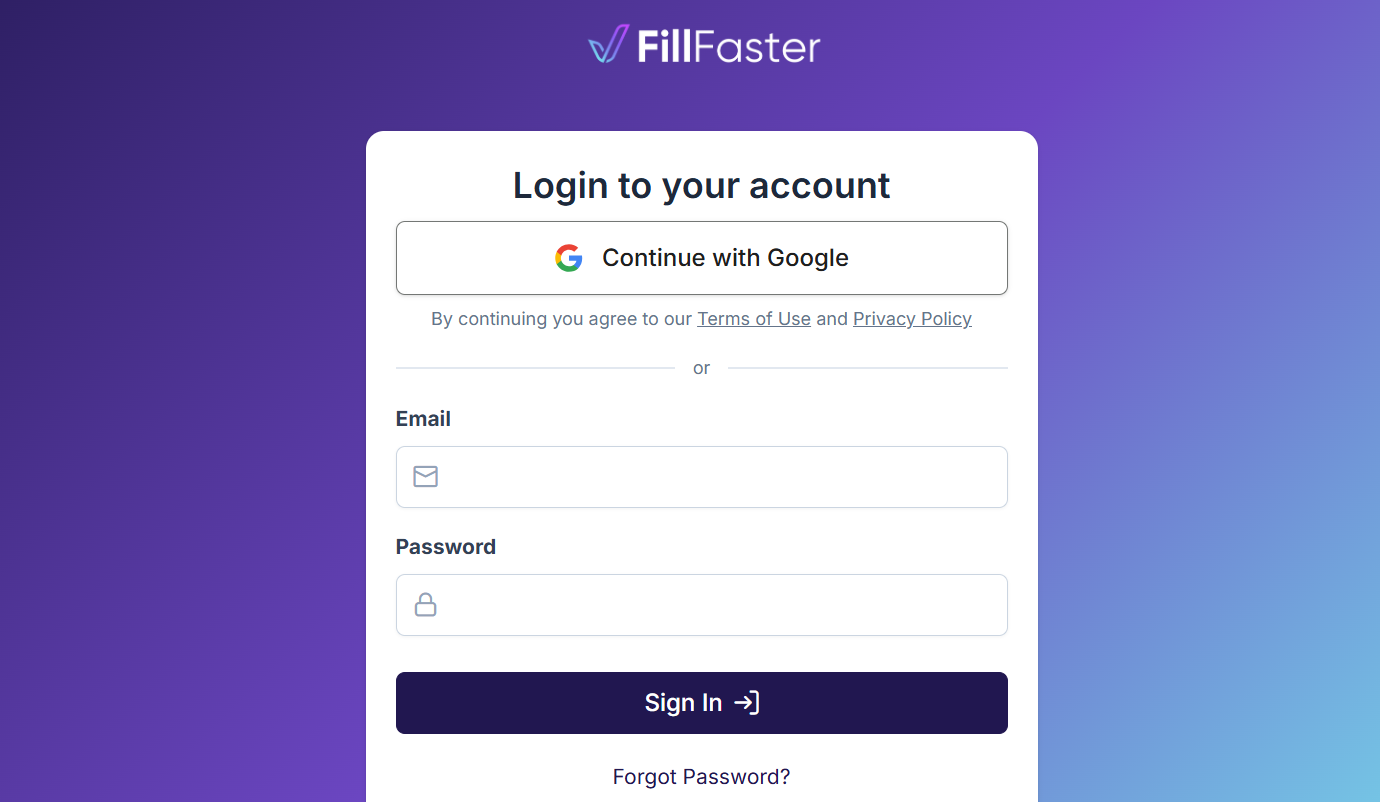
Sign in or sign up with Google

Use your Google account to get into FillFaster faster - whether you are returning or creating a new account.

FillFaster login screen showing the Continue with Google button above email and password fields.
  • Choose "Sign in with Google" from the login screen.
  • Choose "Sign up with Google" when creating a FillFaster account or starting checkout.
New

Email the signed document to the client

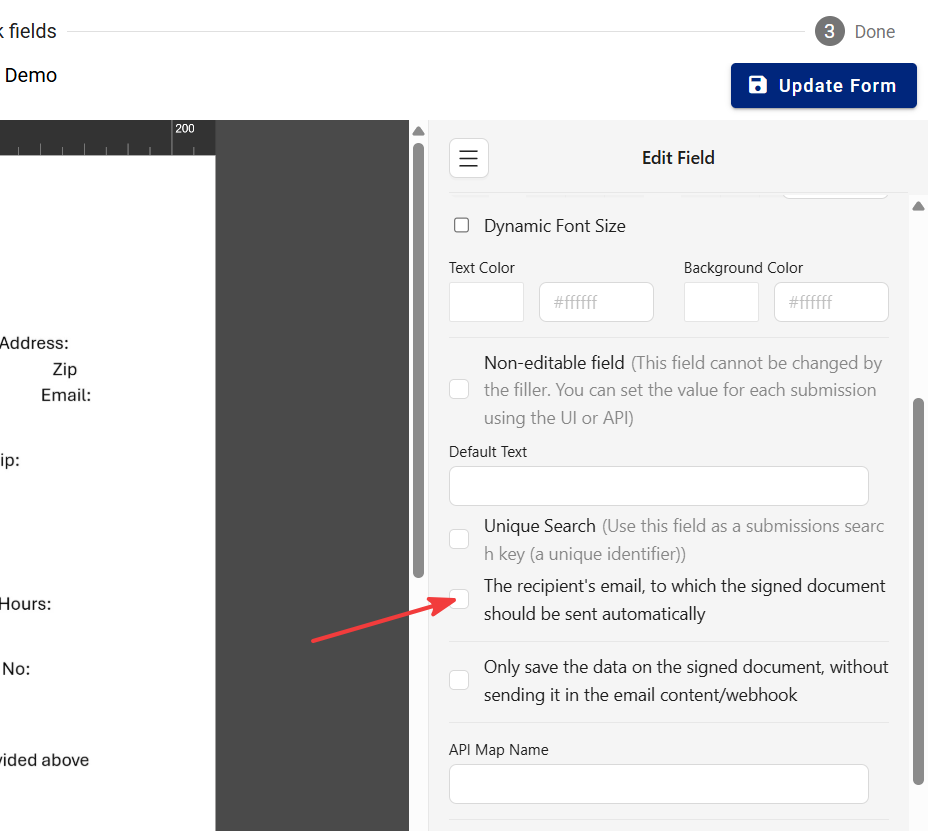
Mark an email field as the recipient address, and FillFaster sends that person the signed document after they submit.

The Edit Field panel, with an arrow pointing at the checkbox that emails the signed document to the recipient.
  • Add an Email address field in the form builder.
  • In Edit field, turn on "The recipient's email, to which the signed document should be sent automatically".
  • Making the field required means the client has to enter an address before they can submit.
New

Scan a barcode into a form field

Add a Barcode Scan field so the person filling the form can scan with the device camera or type the number.

  • In the form builder, choose the Barcode Scan field type.
  • On the form, Open camera reads the code. The number can also be typed in.
  • If the device has more than one camera, the filler can switch cameras.
New

Tables the recipient can fill

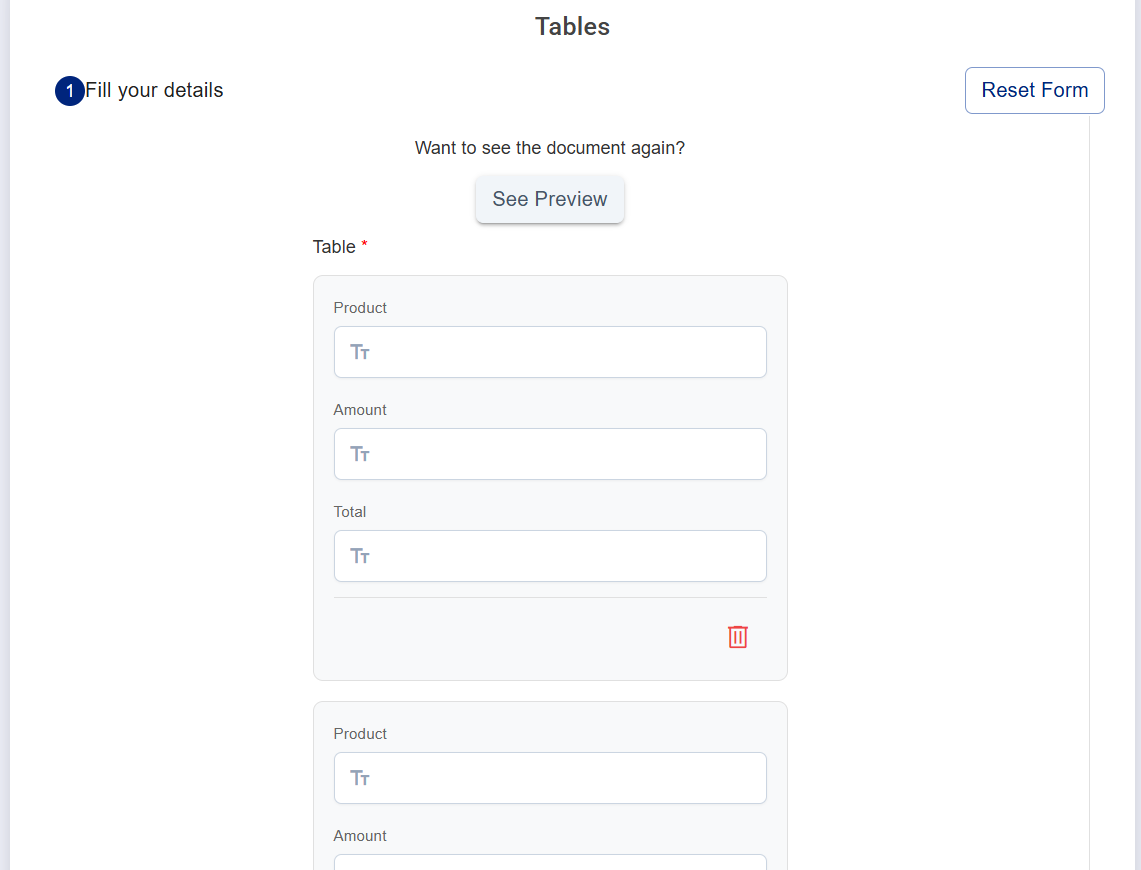
Add a table field so the person filling the form can enter rows, including from a phone.

A table field as the recipient sees it, with rows they can fill.
  • Drag the Table component onto the PDF in the form builder, then set the columns.
  • The recipient fills cells and can add, edit, and delete rows.
  • Use it for repeating lines such as hours, products, or a list of people.
New

Organizations, workspaces, and members

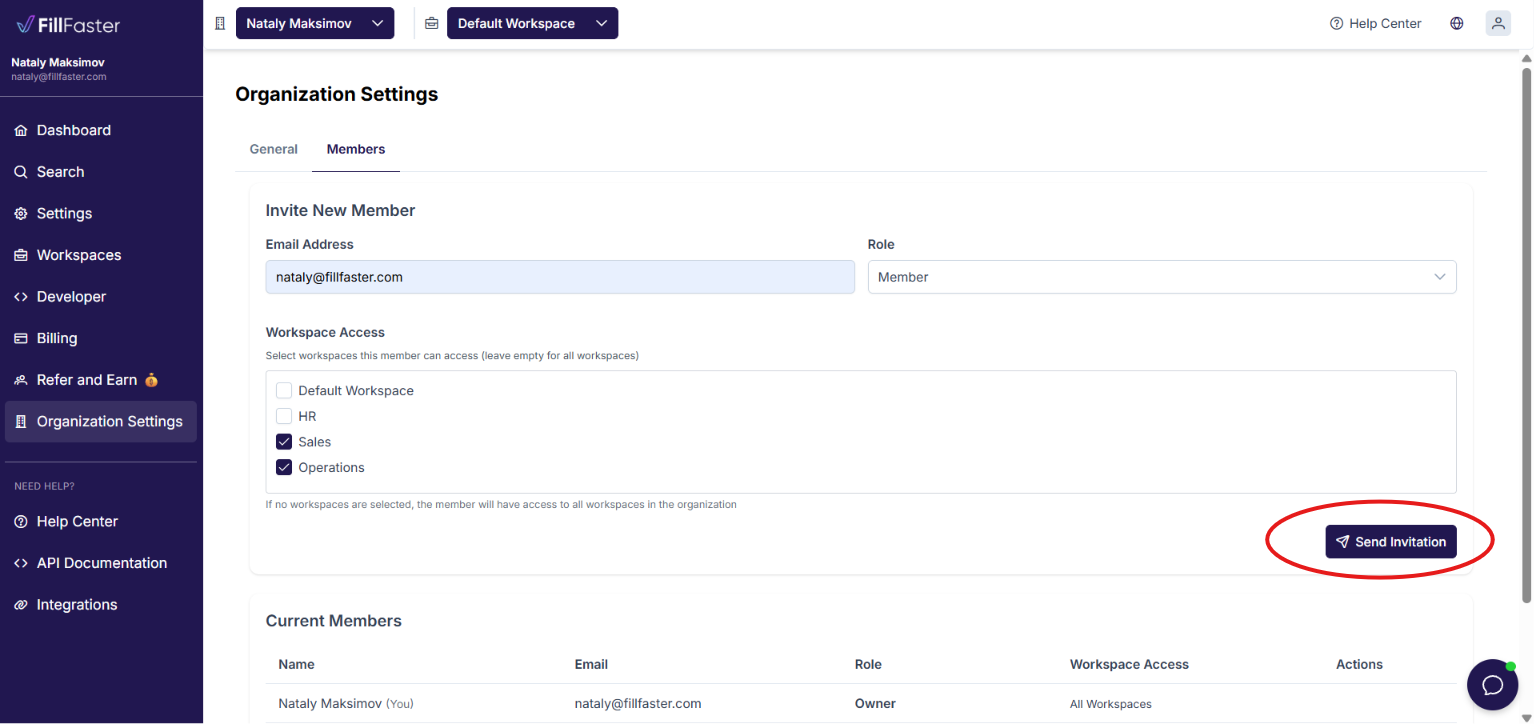
A team can work in one FillFaster organization, split forms into workspaces, and invite people with their own login.

Organization settings showing an invitation and the workspaces assigned to that member.
  • Workspaces group forms and submissions by department, client, or project.
  • Invite a member by email as a user or an admin, and assign the workspaces they can open.
  • Each member signs in with their own account. They do not use the owner's password.
New

Save a form and finish it later

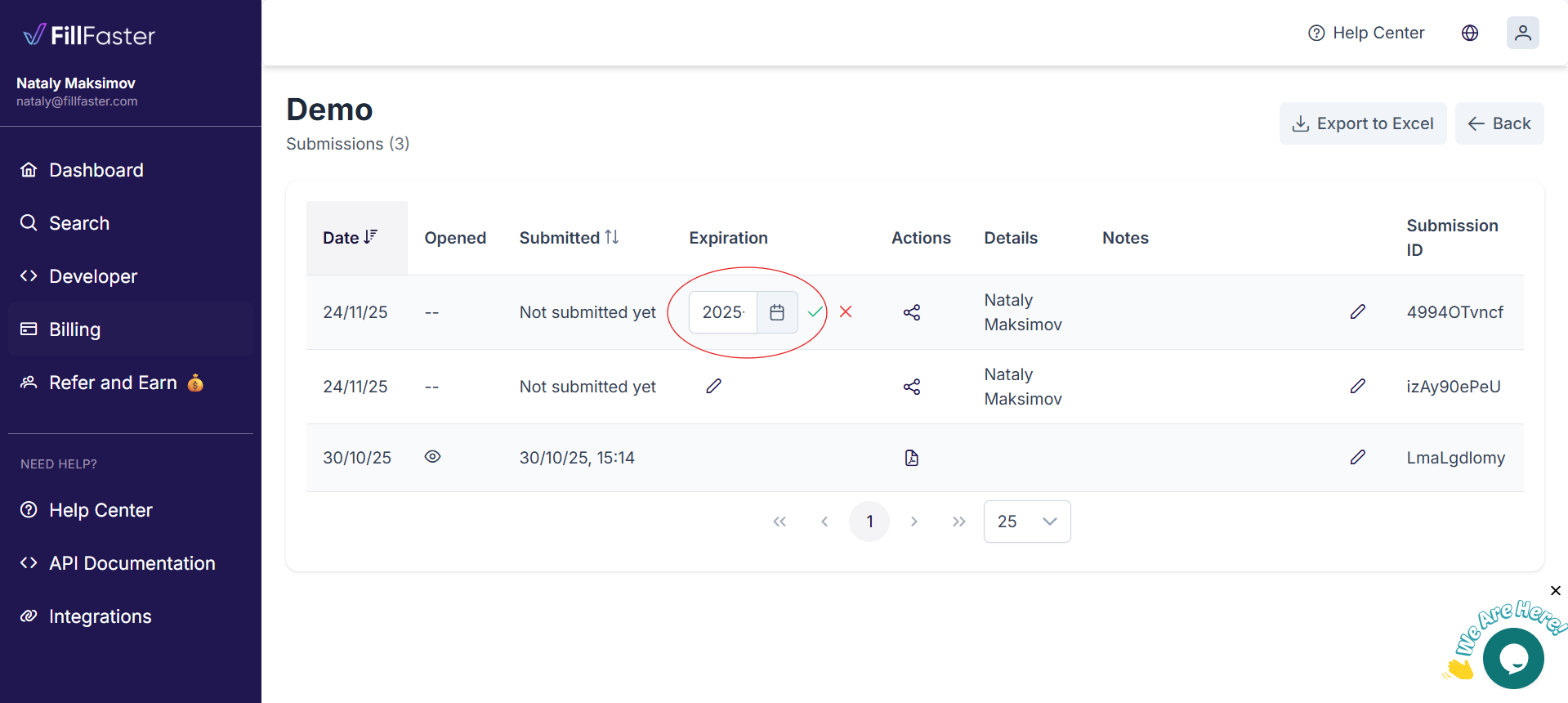
On a one-time submission link, the recipient can save what they entered and open the same link again on any device.

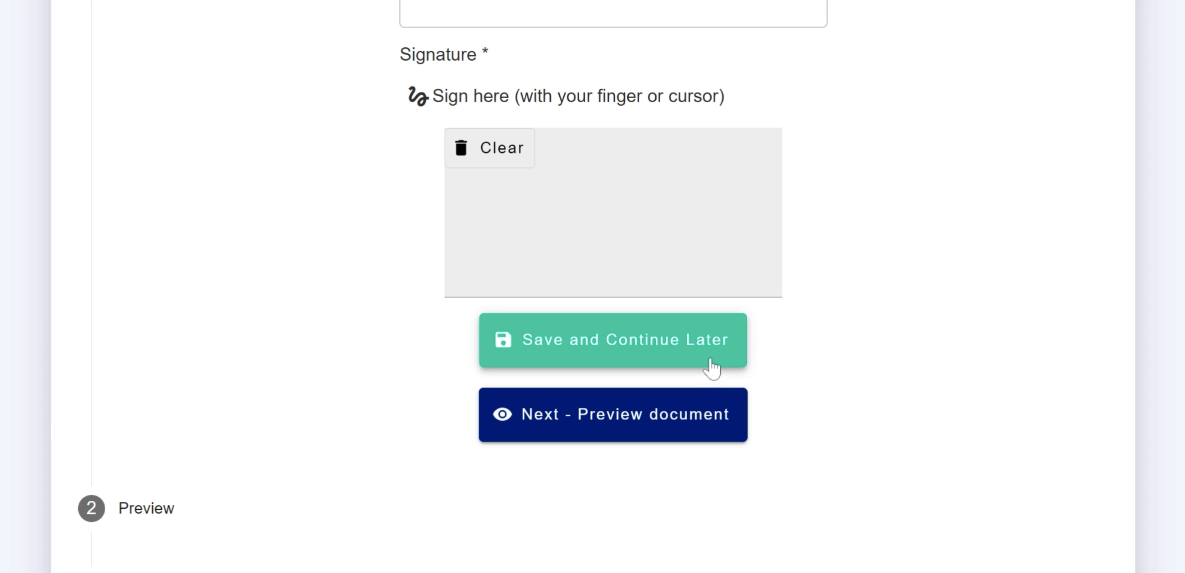
The form with the Save and Continue Later button.
  • Turn it on in the form builder under Beta Features.
  • The form shows Save and Continue Later.
  • Opening the same link on another phone or computer brings the saved answers back.
New

Keep signed files off FillFaster

An account can be set so the finished PDF is not stored on FillFaster. The submission data, including the PDF, is sent to the webhook instead.

  • The dashboard does not offer a view or download for that file.
  • The file is included with the webhook payload.
  • Exports skip submissions whose files were not stored.
New

Detect placeholder tags in a PDF

Turn on Detect PDF Placeholders and FillFaster places fields where the PDF contains tags such as {Signature}.

The PDF as the recipient sees it, with placeholder tags replaced by fields.
  • The switch is in form settings, under Beta Features.
  • Each tag sits in its own text box in the PDF, in the {Signature} format.
  • On the submission link, the tags are removed and replaced with fields the recipient fills or signs.
Integration

Several webhooks, each with its own events

A form can send to more than one HTTPS address. Each address chooses which events it receives.

  • Add a webhook in the form builder. The URL has to start with https://, and the same URL cannot be added twice.
  • Pick the events for that address: Form Submitted, Submission Saved, First Open, Every Open, or Submission Link Created.
  • FillFaster sends a POST with the event name and the field data.
New

Company stamp on a signature field

A signature field can be a company stamp. The recipient enters the company name and number, or uploads a stamp image.

  • In the form builder, set the signature type to Company Stamp.
  • On the form, the recipient can type the company name and a company number of at least 8 digits.
  • They can also upload a stamp image. The image keeps its proportions on the PDF.
New

Require an access code before a form opens

A form or a single submission link can ask for a code before anyone can view or fill it.

  • Set Access Code in the form settings. On a template, it applies to the template and to every submission link created from it.
  • Leave the field empty if the link alone should be enough.
  • The same access_code field is available when you create or update a submission through the API or Make.com.